Burn subtitles into a video, free
Burning in (hardcoding) subtitles draws the words into the video picture, so they show on every app, phone and TV without anyone pressing a CC button. That is what you need for Instagram, TikTok, WhatsApp, LinkedIn and most ads. BolCaps does it in your browser: bring your own SRT or VTT file, or let the AI write the subtitles, then export an MP4 with the text permanently on screen.
Burn subtitles into my video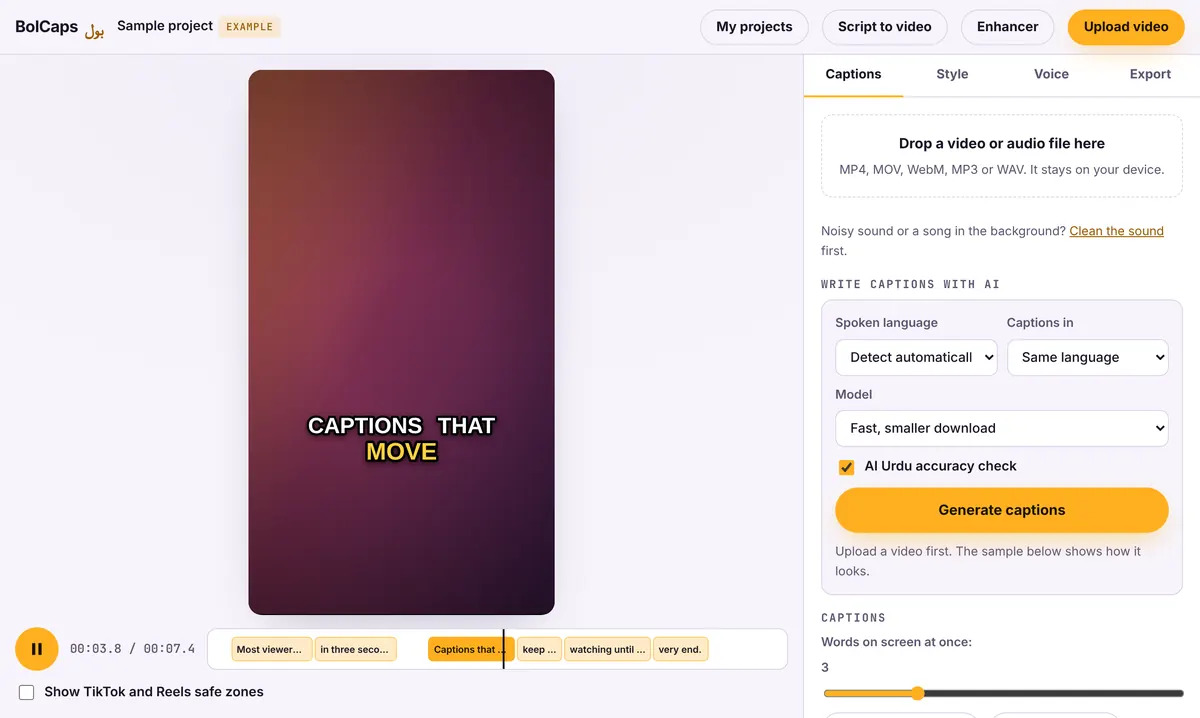
How to do it
- Open the Caption studio and add your video.
- Already have subtitles? In the Captions tab press Import SRT or VTT. No file? Press Generate captions and the AI writes them.
- Check the timing on the timeline and fix any line.
- In the Style tab pick a plain subtitle look or an animated style, and set the font, size and position.
- Export MP4. The subtitles are now part of the video.
Burned-in (open) vs soft (closed) subtitles
- Burned-in: always visible, any style you want, works on every platform. Cannot be turned off or translated later.
- Soft (SRT/VTT uploaded separately): viewers switch them on or off and YouTube can auto-translate them. Not supported by Instagram, TikTok or WhatsApp.
For social video, burn them in. For long YouTube videos, upload an SRT as well so search engines and viewers who prefer CC can use it.
Fixing common SRT problems
If an imported file looks out of sync, the video was probably trimmed after the subtitles were made: shift the whole track on the timeline. If you see strange characters, the file was saved in an old text encoding; open it in a text editor and save it as UTF-8. Very long lines read better split in two.
Burn subtitles without the desktop software
Tools like FFmpeg, HandBrake or Premiere Pro can hardcode subtitles too, but they mean installing software and learning settings. BolCaps does the same job in a browser tab and shows you the result before you export.
No watermark
Your video is exported clean. A small "Made with BolCaps" credit is on by default, and one tick box turns it off. You need a free account only when you download.
Frequently asked questions
Is it free to burn subtitles into a video?
Yes. Import, styling and MP4 export are free with no watermark.
Can I import an existing SRT file?
Yes. SRT and VTT files both work. Press Import SRT or VTT in the Captions tab.
Will burning subtitles reduce video quality?
The video is re-encoded once at high quality. Export at the same size as your original for the sharpest result.
Can I burn subtitles in Arabic, Urdu or Hindi?
Yes. Right-to-left scripts and Devanagari are supported with fonts that render them correctly.
Is my video uploaded?
No. The video is processed on your device.
More free tools
Free auto caption generatorAdd captions to a TikTok videoYouTube Shorts subtitle generatorFree SRT subtitle generatorCaptions for podcast clipsReddit story video makerFaceless video makerFree AI voice generatorTranscribe audio to text, freeAnimated captions generatorInstagram Reels caption generatorVideo to text converterA free Submagic alternativeA free VEED alternativeFree Urdu caption generatorHindi subtitles for Reels, freeAdd subtitles to a video, freeUrdu audio to textHindi audio to textFree Urdu text to speechFree Hindi text to speechFree AI text to videoA free CapCut alternativeRemove background noise from a videoRemove music from a video, keep the voiceYouTube reused content checkerYouTube thumbnail testerFree photo enhancerBlur a face in a photo online