Add captions to a LinkedIn video
Most people scroll LinkedIn at work, at their desk or in a meeting, with the sound off. A video without captions is a silent face. BolCaps adds clean, readable captions to your LinkedIn video in a couple of minutes, in a style that looks professional rather than like a TikTok, and it is free.
Caption my LinkedIn video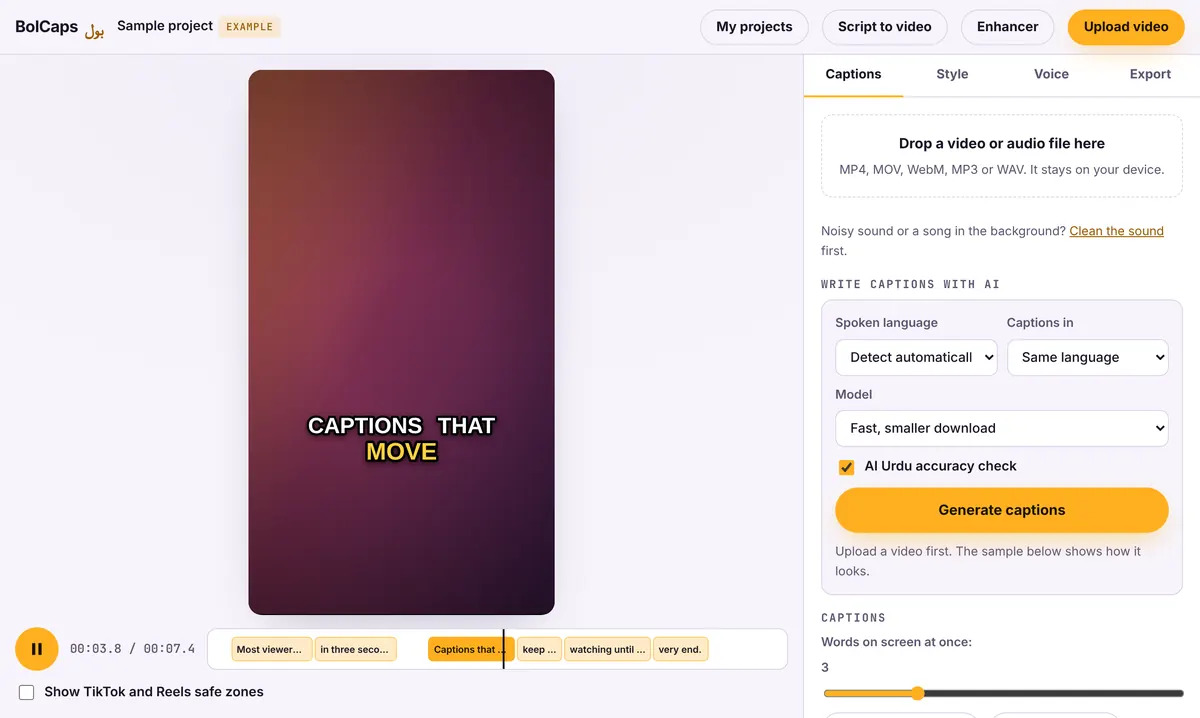
How to do it
- Open the Caption studio and add your video. Square (1:1) and vertical (4:5 or 9:16) videos take up more of the LinkedIn feed.
- Press Generate captions and fix any names or company terms.
- Pick a calm style: a clean subtitle look or a subtle word highlight in your brand color.
- Export the MP4 and post it, or download an SRT file and add it in LinkedIn's video settings.
Burned-in captions or an SRT file?
- Burned-in: always visible in the feed, your fonts and colors, works on every device. Best for most posts.
- SRT upload: LinkedIn lets you add a caption file when you post a video from a computer, and viewers can turn it off. Good for long talks and webinars.
Captions that suit LinkedIn
Keep it calm: one or two lines at the bottom third, a clean sans-serif font, white text with a soft shadow, and maybe one highlight color. Skip bouncing emojis. Put a short headline in the first frame that says what the viewer will learn, because LinkedIn autoplays on mute.
Turn one talk into a week of posts
Record a five-minute talk or webinar clip, then use Long video to Shorts in the editor to find the strongest 30 to 60 second moments. Caption each one and post one a day. The transcript also gives you text for the post itself.
No watermark
Your video is exported clean. A small "Made with BolCaps" credit is on by default, and one tick box turns it off. You need a free account only when you download.
Frequently asked questions
Is it free to caption LinkedIn videos?
Yes. Captions, styles and exports are free, with no watermark.
Does LinkedIn add captions automatically?
LinkedIn can generate automatic captions for some videos, but they are plain and viewers have to turn them on. Burned-in captions always show.
What size should a LinkedIn video be?
Square 1080 x 1080 or vertical 1080 x 1350 take the most space in the feed. 16:9 works for talks and webinars.
Can I add my brand colors?
Yes. Change the font, colors, outline and highlight to match your brand.
More free tools
Free auto caption generatorAdd captions to a TikTok videoYouTube Shorts subtitle generatorFree SRT subtitle generatorCaptions for podcast clipsReddit story video makerFaceless video makerFree AI voice generatorTranscribe audio to text, freeAnimated captions generatorInstagram Reels caption generatorVideo to text converterBurn subtitles into a videoA free Submagic alternativeA free VEED alternativeFree closed caption generatorSpanish subtitle generatorFrench subtitle generatorTranscribe a Zoom recordingLecture to text, freeTurn a long video into ShortsAI voiceover for YouTube videosA free Opus Clip alternativeA free Descript alternativeA free Kapwing alternativeA free ElevenLabs alternativeFree Urdu caption generatorHindi subtitles for Reels, freeAdd subtitles to a video, freeUrdu audio to textHindi audio to textFree Urdu text to speechFree Hindi text to speechFree AI text to videoA free CapCut alternativeRemove background noise from a videoRemove music from a video, keep the voiceYouTube reused content checkerYouTube thumbnail testerFree photo enhancerBlur a face in a photo online