Transcribe a Zoom recording, free
Meeting notes are the job nobody wants. If you record a call in Zoom, Microsoft Teams or Google Meet, BolCaps turns the recording into text you can search, quote and paste into an email or a doc. You do not need a paid transcription plan or a bot joining your meeting: just the file you already have.
Transcribe my recording free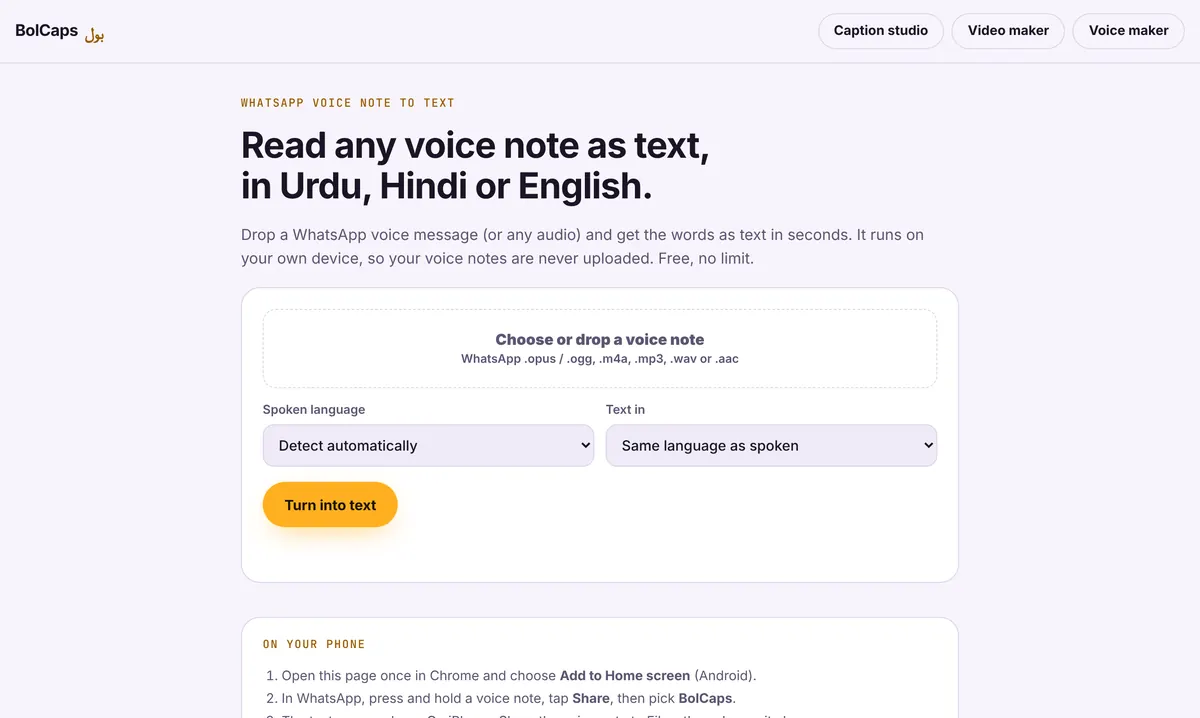
How to do it
- Find the recording. Zoom saves an MP4 (video) and an M4A (audio only) in Documents/Zoom on your computer, or in the cloud recordings page if you use cloud recording.
- Open Voice note to text and drop in the M4A or MP4 file. The audio file is smaller and finishes faster.
- Pick the spoken language, or leave it on automatic, and press Turn into text.
- Read the transcript, fix names and terms, then copy it or download a .txt file.
Where to find your recording
- Zoom local recording: Documents › Zoom › a folder named with the date and meeting name. Use the .m4a audio file.
- Zoom cloud recording: zoom.us › Recordings, then download the audio file.
- Microsoft Teams: the recording is saved to OneDrive or SharePoint. Download the MP4.
- Google Meet: the recording lands in Google Drive under Meet Recordings. Download the MP4.
Ask before you record
Tell everyone on the call that it is being recorded and transcribed. Many US states and Canadian provinces have consent rules for recording conversations, and it is simply good manners. Zoom and Teams show a recording notice, but saying it out loud is clearer.
From transcript to useful notes
Paste the transcript into your notes app and pull out three things: decisions made, action items with names, and open questions. For a recurring meeting, a short summary at the top of the shared doc saves everyone from rewatching the call.
Your video stays with you
Only the sound is sent to the speech service that writes the words (OpenAI Whisper, run by Groq or Cloudflare), and it is not kept. The video file itself never leaves your computer or phone, which matters for client work, classes and internal meetings.
Frequently asked questions
Is it free to transcribe a Zoom recording?
Yes. There is no subscription and no per-minute price, with a generous daily allowance.
Does it tell who is speaking?
Not yet. The transcript is one block of text. Add names by hand where it matters.
Can it transcribe Microsoft Teams and Google Meet recordings?
Yes. Any MP4, M4A, MP3, WAV or WebM file works, whatever app recorded it.
Do I need to add a bot to my meeting?
No. You transcribe the recording after the call, so nothing joins your meeting.
How long can the recording be?
An hour-long call works fine on a laptop. Very long files take longer to read.
More free tools
Free auto caption generatorAdd captions to a TikTok videoYouTube Shorts subtitle generatorFree SRT subtitle generatorCaptions for podcast clipsReddit story video makerFaceless video makerFree AI voice generatorTranscribe audio to text, freeAnimated captions generatorInstagram Reels caption generatorVideo to text converterBurn subtitles into a videoA free Submagic alternativeA free VEED alternativeFree closed caption generatorSpanish subtitle generatorFrench subtitle generatorLecture to text, freeCaptions for LinkedIn videosTurn a long video into ShortsAI voiceover for YouTube videosA free Opus Clip alternativeA free Descript alternativeA free Kapwing alternativeA free ElevenLabs alternativeFree Urdu caption generatorHindi subtitles for Reels, freeAdd subtitles to a video, freeUrdu audio to textHindi audio to textFree Urdu text to speechFree Hindi text to speechFree AI text to videoA free CapCut alternativeRemove background noise from a videoRemove music from a video, keep the voiceYouTube reused content checkerYouTube thumbnail testerFree photo enhancerBlur a face in a photo online